Incognito In Chrome – What All Things To Know About It
If you are a complete user of Google Chrome, you may noticed a term called Incognito mode. Then what is this incognito mode? the company explained that while browsing and downloading contents through Incognito window, it won’t be saved anywhere in the browsing or downloading histories. most simply incognito in chrome gives more security and privacy for your browsing experience.
What should user aware while entering to Incognito mode?
As Incognito mode is designed for private browsing, you need to think about following tings which can steal your informations, where Chrome can’t do anything.
People Looking your activity.
Keyloggers in public computers.
Unknown public Wi-Fi.
Website which stores your informations like usernames and passwords.
ISP or employees who are tracking your page views.
How to open Incognito window in chrome?
As there are keyboard shortcuts for entering to Incognito mode, it is very simple. you can enter to incognito by pressing Ctrl + Shift + N.
Incognito in chrome by default
This trick allows you to open your Chrome Browser in Incognito mode by default. that means no need of pressing Ctrl + Shift + N every time you open your browser.
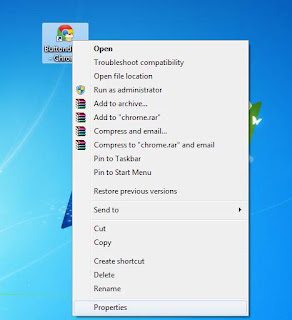
Right Click on Chrome Icon
Choose Properties
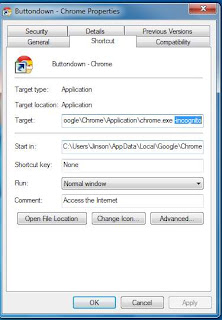
Now from the Shortcut option add ” -incognito ” after Chrome.exe
Apply > OK
Now every time you open Chrome, you can enter into incognito without doing anything.
We all know that Android is one of the leading Mobile Operating system. Almost Every House atleast have 1 Android mobile. We all love to Tweak and play tricks with Android Smartphones. Each day we tend to learn More and more about Android Smartphones.
The Popularity of Android is just not because it is Owned by Google but also there are Tons of apps available in Google Play Store for almost every task you can think of.
You might be Well Versed with Android Operating system but you might not know Some Hidden Android Secret Codes that you used to Explore more about android.
Today I will share some Cool Hidden Android Secret Codes that will help you to know more about your Android smartphone and will ease up your Different tasks
HIDDEN ANDROID SECRET CODES
*#*#778O#*#* = Factory Data Reset
*#*#I472365#*#* = Quick GPS Test
*#*#0673#*#* OR *#*#0289#*#* = Audio Test
*#*#2664#*#* = Touch Screen Test
#’#273283*255*663282*#*#* = Backup Media Files
*#*#0283#*#* = Packet Loopback Test
*2767*3855# = Reinstalls The Phones Firmware & Format Your Phone
*#*#232339#*#* OR *#*#526#*#* = WireIess Lan Test
*#*# 1575#*#* = Different GPS Test
*#*#4636#*#*‘ = Complete Information About your Phone
*#*#2663#*#* = Touch Screen Version
*#*#232337#*# = Displays bluetooth Device Address
*#*#4986*2650468#*#* = PDA, Phone. Hardware, RF Call Date
*#*#44336#*#* = Displays Build Time
*#06# = Displays IMEI Number
*#*#8255#*#* = Google Talk Service Monitoring
*#*#I I I I#*#* | *‘#*#2222#*#* = FTA Software Version FTA | Hardware /ersion
*#*#3264#*#* = Rom version
*#*#23233I#‘*#* = bluetooth Test
*#*# 1234#’#’ = PDA and Phone Firmware Info
*#*#0*#*#*= LCD Display Test
*#*#0842#*#* Vibration and Backlight Test
*#*#0588#*#* = Proximity Sensor Test
*#*#232338#*#* = Wi-Fi Mac Address
*#*#7262626#*#*= Field Test
*#*#34971539#*#* = Camera Update
*#*#19732840#*#* = Enable Test Mode
So, the Above List Consists of almost 27 Android secret Codes that you might have not known but Since i have shared them here now you are aware of them. So use them whenever you Wish to Check and explore more about your Phone.
Top 8 Android Apps By Google You Must Dont Know Amazing Apps
INTRODUCTION:-
ANYONE HERE WHO DON’T KNOW ABOUT GOOGLE. I THINK NO ANYONE HERE WHO DONT’T KNOW ABOUT GOOGLE. ALL YOU KNOW ABOUT GOOGLE VERY WELL.
Google launch itself in 4 sep 1998 as a privately. but in 19 aug 2004 it usable for all internet users. This is a Great search engine as well as many other services like Gmail, GDrive, Google+ etc. This is also a Best App developer , It develop self platform, From my count, there are an astounding 117 unique apps that the search giant and its subsidiaries have published on the Google Play Store.
Every Android mobile user should be familiar with apps like Google Maps, YouTube, Google Photos, Hangouts, Chrome, Gmail, and a handful of other ubiquitous wares—but that’s only a drop in the bucket when it comes to the full list of useful Google apps. So today, we’ll shine a light on the best of Google’s “other” Android apps, which are just as handy, but lesser-known.
1. Google Handwriting Input
If you’ve struggled to adjust to using on-screen virtual keyboards, Google Handwriting Input provides a natural input method that anyone should be able to jump in and learn right away.
Install Google Handwriting Input for free from the Play Store
As its name would suggest, Handwriting Input allows you to “type” with your own handwriting. After running through a quick and easy setup guide, you can scribble characters with your thumb or stylus, which will be instantly converted into typed text.
2. My Tracks
For the adventurous folks out there, My Tracks offers a great way to monitor and record your full range of outdoor activities—from hiking, to biking, and even rock climbing.
Install My Tracks for free from the Play Store
Once you’ve started up a session, My Tracks records your path via GPS, while at the same time keeping track of speed and elevation. You can view and share your activity sessions with maps, graphs, and detailed stats, so the adventurer inside of you now has a way to fully express himself.
3. Androidify
While the usage and predominant placement of Android’s trademarked logo may make it seem like a sly marketing campaign on the surface,Androidify actually provides a unique and fun way to express yourself and show off your creativity.
Install Androidify for free from the Play Store
You start off with a naked green Android logo, but from here, you can change the skin tone to match your own, add shirts, pants, shoes, hair, and other accessories, then save your Android-ified likeness to the official gallery or share it with friends by generating a QR code.
4. My Maps
If you’ve ever had the need to create an interactive map of any kind,My Maps is indispensable. Whether you’re planning a vacation, plotting the best route, or keeping track of apartments for rent, you can do it all with this useful app.
Install My Maps for free from the Play Store
You start by creating a new map and giving it a name. From here, you can add markers for specific locations, draw lines, or plot a route, and each point on your map can be given a name and description. The same service can beaccessed on the web if you prefer using a mouse, and each of the maps you create can be shared with other Google users.
5. Google Gesture Search
In the same vein as Handwriting Input, Google Gesture Search provides a way to interact with your phone by drawing out letters of the alphabet. Except this particular app is for searching your entire phone.
Install Google Gesture Search for free from the Play Store
Upon opening Gesture Search, you’ll be asked which categories you’d like to index for searching purposes. The choices here are contacts, apps, settings, music, and browser, which means you can find any app, link, person or song easily. Just draw out your query using your thumb or a stylus, and the search results will be refined as you continue to spell out what it is you’re looking for.
6. Google Spotlight Stories
During that brief period of time where Google owned Motorola, a lot of new and interesting smartphone concepts were realized. Among these was a 3D interactive video of sorts, which ultimately gave rise to an app called Google Spotlight Stories.
Install Google Spotlight Stories for free from the Play Store
These interactive Spotlight Stories could almost be called a prelude to Google Cardboard, since they use your phone’s internal sensors to play the video in a 360-degree virtual reality environment. The app includes several free “stories” that you can experience, so it’s more than just a one-off proof of concept.
7. Device Assist
I used to be my family’s go-to tech support agent, but I’m gradually getting phased out in favor of an app calledDevice Assist, which offers tutorials and device troubleshooting for people who aren’t necessarily experts in all things Android.
Install Device Assist for free from the Play Store
Upon opening the app, you’ll be given a chance to set your experience level with Android, which determines the types of tips you’ll be shown. These tips offer pictures with clear-cut instructions and direct links to relevant system settings menus, so if any of them interest you, Device Assist makes it easy to set things up. Then, if you’re experiencing any serious problems with your phone, the “Detected Issues” tab will find them and walk you through the simplest fix.
8. Google Googles
I discovered Google Goggles shortly after purchasing my first smartphone back in 2009, and almost instantly, I was convinced that these little handheld gadgets were somehow composed of pure magic.
Install Google Goggles for free from the Play Store
The app has been updated with added functionality over the years, but the basic premise remains the same—simply capture an image of anything you’d like to learn more about, and the power of Google will provide information about real-world objects. You can use Google Goggles to translate text, look up prices by scanning an item’s bar code, import business cards directly to your contacts, or even solve Sudoku puzzles—how cool is that?
<<< Keep Visting For Daily Updates And Stayed Tunned With Us >>>
How To Know Full Hardware Information of Your Computer
I know that you owned a computer. But do you know what are the hardware specifications of your computer? Tight question. Isn’t it?
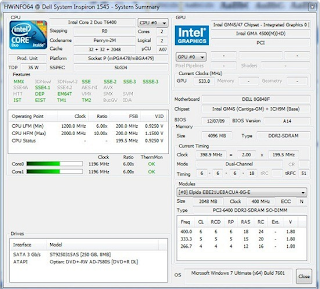
If so you must understand about HWiNFO a tool helps to understand Professional System Information and Diagnostics.
HWiNFO™, HWiNFO32™ and HWiNFO64™ are professional hardware information and diagnostic tools supporting latest components, industry technologies and standards. These tools are designed to collect and present the maximum amount of information possible about computer’s hardware which makes them suitable for users searching for driver updates, computer manufacturers, system integrators and technical experts as well. Retrieved information is presented in a logical and easily understandable form and can be exported into various types of reports.
Features Are Following:-
*Comprehensive hardware information *System health monitoring *Full and short report format
A computer virus is basically a computer program that can reproduce itself and spread from one computer to another with or without user knowledge.
After the end of second world war third world war named as cyber war came into exist. It can be said that most powerful weapon of a cyber war is a computer virus.
I think that you don’t mind about a PC virus until you got a big damage from it. isn’t it? Keep in mind that there are extremely dangerous program’s that can damage your video card and Hard disk too.
As per the reports the Univac 1108 and IBM 360/370 may be the computers which had infected by virus. Therefore it can assume that the first virus was born in the either the beginning of 1970s or in the end of 1960s. Without your prior knowledge your PC might have been infected by virus and remotely being controlled by a hacker. Here are a few simple methods to know if your computer has been infected.
1. Computer will slow down
75% of computer viruses make the system slow down.If you have latest hardware components and still your PC getting down several times, sure that your computer is affected by some viruses.
More time to booting up, more time to open My Computer, more time to open a program/software can be consider as system slow down.
2. Repeated Error Pop up window
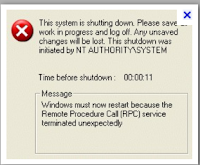
If your PC affected by virus you may noticed that some error message box are continuesly arriving, it may due to virus infection. These error box are mainly due to the deletion of system files by the viruses. Suddenly on instant a browser or a popup window launches itself in the desktop without you having done anything. Even if you close them, they open by themselves infinitely. Some of these pop ups are visible at the system start up itself. Then remember that it’s time for a system format.
3. Programs/Softwares getting closed without your intention / Application not opening
Have you ever noticed that any of your softwares or programs get suddenly closed without your intention? It may due to virus infection that thus viruses make damage to files in the program files folder. Another symptom is that softwares didn’t get opened.How many times you have noticed the failure attempt to run an application from the start menu or desktop?There may be error message says that some files are missing.
4. Internet cannot be connected / Slow bandwidth
Have you ever seen this type of downloading speed before? This is not due to ISP problem. I got only 1KBps before i moved to windows 7. Loss of Internet communication/ Difficulty in modem connection probably a symptom of virus infection, although it could also be due to a problem with your ISP or modem. You might also have a connection that runs much more slowly than usual. Malwares are the reason for slow internet connection. They cut down the bandwidth speed by opening some other seccions or by downloading unwanted files.
5. Displaying of recycler folder
Sometimes, you may see an Recycler folder and system volume information folder in Hard disk drives or in USB drives or hard disk and you may treat it as recycler virus. Actually Recycler folder is only an system folder that used to keep the deleted files. You can click that folder and find the deleted files, images and every thing in it. The problem is that many autorun viruses hides in the recycler folder. When ever they get deleated, they repeatedly comes into the recyler folder. That means recycler folder is virus. That’s why antivirus programs catch recycler folder as virus files.
Top Ten Keyboard Shortcut That Everyone Should Know
Hello TricksEdge Reader, Here Are Some KeyBoard Shortcuts.
Top Ten Key Board Shortcut :- 1. Ctrl + C or Ctrl + Insert :- Both Ctrl + C and Ctrl + Insert willcopy the highlighted text or selecteditem.
2. CTRL+X :- instead of copy you want to cut the text or onject you press CTRL+ X
3. Ctrl + V or Shift + Insert:- Both the Ctrl + V and Shift + Insert
will paste the text or object thats in the clipboard.
4. Ctrl + Z and Ctrl + Y:- Pressing Ctrl + Z will Undo any change. For example, if you cut text, pressing this will undo it. These shortcuts can also be pressed multiple times to undo or redo multiple changes. Pressing Ctrl + Y would redo the undo.
5. Ctrl + F:- Pressing Ctrl + F opens the Find in any program. Ctrl + F includes your Internet browser to find text on the current page. Press Ctrl + F now to open the Find in your browser and search for "shortcut" to find each time shortcut is mentioned on this page.
6. Alt + Tab or Ctrl + Tab:- Pressing Alt + Tab switches between open programs moving forward. For example, if you have your browser window open and other programs running in the background press and hold Alt and then press tab to cycle through each open program.
7. Ctrl + Back space and Ctrl +Left or Right arrow:-
Pressing Ctrl + Backspace will delete a full word at a time instead of a single character.
Holding down the Ctrl key while pressing the left or right arrow will move the cursor one word at a time instead of one character at a time. If you want to highlight one word at a time, hold down Ctrl + Shift and then press the left or right arrow key to move one word at a time in that direction while highlighting each word.
8.) CTRL+S :- While working on a Document or Other
File in almost every program, pressing Ctrl + S saves that file. Use this shortcut key frequently if youre working on anything important in case an error happens, you lose power, or other problem that causes you to lose any work since the last save.
9.) Ctrl + Home or Ctrl + End:-
Ctrl + Home will move the cursor to the beginning of the document, and Ctrl + End will move the cursor to the end of a document. These shortcuts work with most documents, as well as web pages.
10.) CTRL+P:- Open a print preview of the current
page or document being viewed. For example, press Ctrl + P now to view a print preview of this page.
CTRL+A:- CTRL+A use for select all text
I Think Every One Is Know This And If Any One Doesnt Then He Is Now Know.
Using keyboard shortcuts can incredibly build your benefit, diminish dull strain, and help keep you centered. Case in point, highlighting content with the keyboard and pressing Ctrl + C is much speedier than taking your hand from the keyboard, highlighting the content utilizing the mouse, clicking duplicate from the document menu, and after that returning your hand set up on the keyboard. The following are our main 10 keyboard alternate ways we propose everybody remember and utilization.
Ctrl + C or Ctrl + Insert
Both Ctrl + C and Ctrl + Insert will copy the highlighted text or selected item.
Ctrl + V or Shift + Insert
Both the Ctrl + V and Shift + Insert will paste the text or object thats in the clipboard.
Ctrl + Z and Ctrl + Y
Undo any change. For example, if you cut text, pressing this will undo it. This can also often be pressed multiple times to undo multiple changes. Pressing Ctrl + Y would redo the undo.
Ctrl + F
Pressing Ctrl + F opens the Find in any program. This includes your Internet browser to find text on the current page.
Alt + Tab or Ctrl + Tab
Quickly switch between open programs moving forward.
Tip: Press Ctrl + Tab to switch between tabs in a program.
Tip: Adding the Shift key to Alt + Tab or Ctrl + Tab will move backwards. For example, if you are pressing Alt + Tab and pass the program you want to switch to, press Alt + Shift + Tab to move backwards to that program.
Tip: Windows Vista and 7 users can also press the Windows Key + Tab to switch through open programs in a full screenshot of the Window.
Ctrl + Back space and Ctrl + Left or Right arrow
Pressing Ctrl + Backspace will delete a full word at a time instead of a single character.
Holding down the Ctrl key while pressing the left or right arrow will move the cursor one word at a time instead of one character at a time. If you wanted to highlight one word at a time you can hold down Ctrl + Shift and then press the left or right arrow key to move one word at a time in that direction while highlighting each word.
Ctrl + S
While working on a document or other file in almost every program pressing Ctrl + S saves that file. This shortcut key should be used frequently anytime youre working on anything important.
Ctrl + Home or Ctrl + End
Ctrl + Home will move the cursor to the beginning of the document and Ctrl + End will move the cursor to the end of a document.
Ctrl + P
Open a print preview of the current page or document being viewed. For example, press Ctrl + P now to view a print preview of this page.
Page Up, Space bar, and Page Down
Pressing either the page up or page down key will move that page one page at a time in that direction. When browsing the Internet pressing the space bar also moves the page down one page at a time.
Tip: If you are using the space bar to go down one page at a time press the Shift key and space bar to go up one page at a time.


 You might be Well Versed with Android Operating system but you might not know Some Hidden Android Secret Codes that you used to Explore more about android.







 Using keyboard shortcuts can incredibly build your benefit, diminish dull strain, and help keep you centered. Case in point, highlighting content with the keyboard and pressing Ctrl + C is much speedier than taking your hand from the keyboard, highlighting the content utilizing the mouse, clicking duplicate from the document menu, and after that returning your hand set up on the keyboard. The following are our main 10 keyboard alternate ways we propose everybody remember and utilization.